Hi and welcome to Decompiled Art articles!
As we progress, we're entering a more practical phase. It may have taken some time, but I believe you can agree that understanding the fundamentals of GPU Computing and its implementation within Unity is crucial. Without this foundation, we would be lacking the necessary groundwork. So, let's now delve into the exciting topic of how the GPU can assist us in processing transforms!
To follow along, please make sure to check these chapters:
Compute Shaders in Unity: GPU Computing, First Compute Shader
Compute Shaders in Unity: Shader Core Elements, First Compute Shader Review
Compute Shaders in Unity: Multiple Kernels, Compute Buffers, CPU - GPU data flow
When it comes to processing transforms (and other quantity-dependent operations) in Unity, there are key differences between using the CPU and the GPU, particularly with compute shaders.
The CPU is slower in transform processing compared to the GPU for a few reasons:
- Parallelism: GPUs have thousands of cores designed for parallel processing, allowing them to handle multiple transform operations simultaneously. CPUs, with fewer cores optimized for sequential execution, cannot match the parallel computing power of GPUs.
- Hardware Acceleration: GPUs are specialized hardware with dedicated resources for parallel computing. They are optimized for handling large amounts of data efficiently, unlike CPUs, which have a more balanced design for general-purpose computing.
- Memory Bandwidth: GPUs typically have faster memory access and higher memory bandwidth, enabling them to handle the data-intensive nature of transform processing more efficiently than CPUs.
To sum up, GPU's parallel architecture, hardware acceleration and efficient memory access make it faster for large amount of transforms processing compared to the CPU.
In this article, we will examine three examples of how to leverage GPUs for transform manipulations, specifically focusing on tweaking position values.
Here, you can get a sneak peek of the results from all three samples in a fast-forward preview:
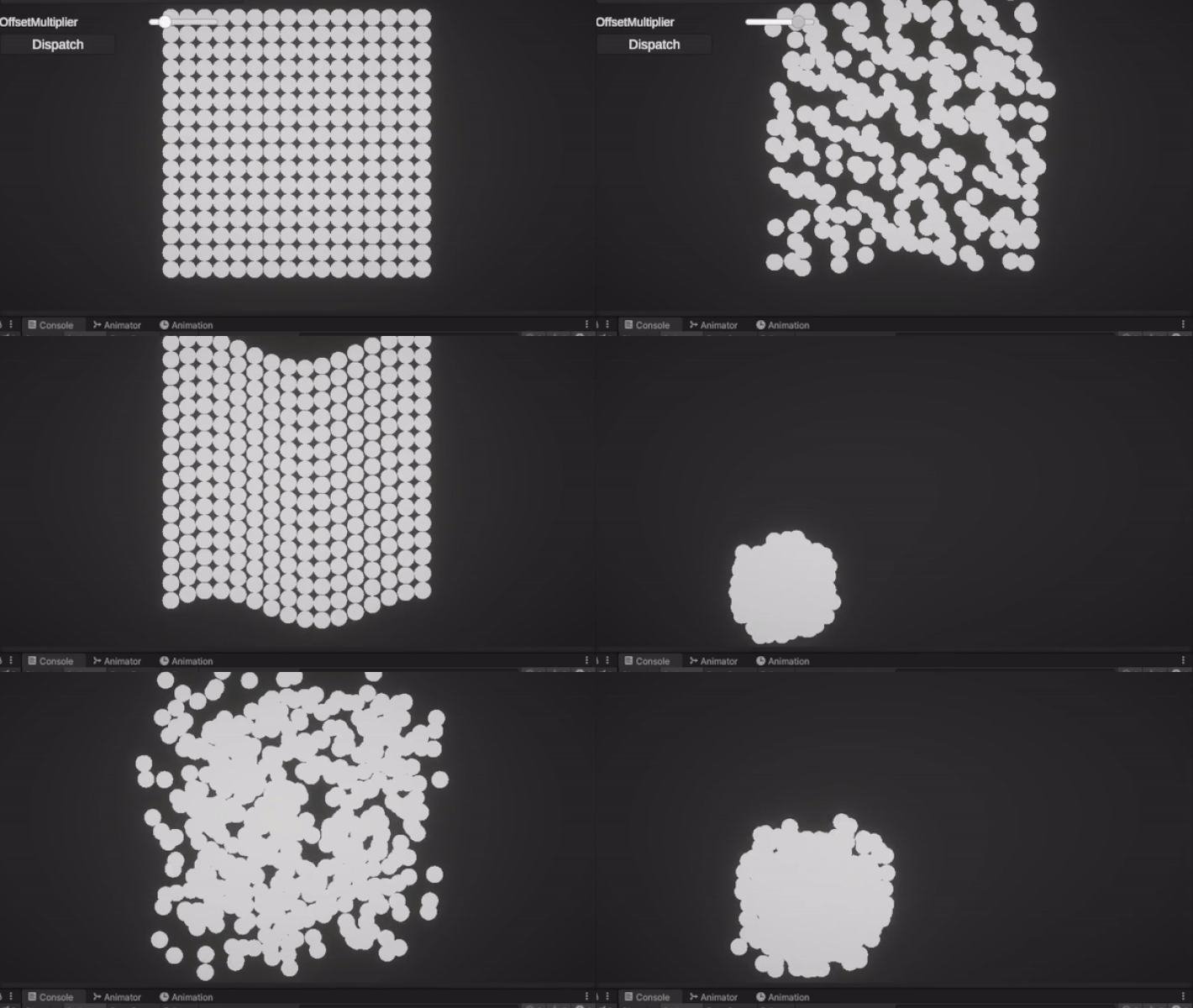
In each sample, we will process a specified number of spawned objects (such as basic spheres) and apply specific positioning behaviors to them.
Basic sample
Let's begin with the simplest example, where our goal can be divided into two parts:
- Setting the initial position for each spawned object.
- Adding controls to give each object its own offsets and exposing controls to UI interactive elements.
GPU processing transforms, Basic sample: Compute shader
#pragma kernel TransformsBasic
struct SpawnedObjectData
{
    float3 position;
};


RWStructuredBuffer<SpawnedObjectData> spawnedObjectsData;
RWStructuredBuffer<SpawnedObjectData> spawnedObjectsDataInit;


float resolution;
float offsetMultiplier;


float generateRandom (float input, float seed = 0.538)
{
    float randomOutput = frac(sin(input + seed) * 142631.6548);
    return randomOutput;
}


[numthreads(64,1,1)]
void TransformsBasic (uint3 id : SV_DispatchThreadID)
{
    SpawnedObjectData spawnedObjectData;

    //RESET X-POSITION
    spawnedObjectData.position = spawnedObjectsDataInit[id.x].position;

    const float randomOffset = generateRandom(id.x) * offsetMultiplier;
    spawnedObjectData.position.x += randomOffset;
    spawnedObjectData.position.y += randomOffset;

    spawnedObjectsData[id.x] = spawnedObjectData;
}
SpawnedObjectData struct
struct SpawnedObjectData
{
    float3 position;
};
The purpose of this struct is to store, modify, and set position values for an individual spawned object. It consists of a single member, position, which is of type float3 (Vector3 analogue).
Read-write structured buffers
RWStructuredBuffer<SpawnedObjectData> spawnedObjectsData;
RWStructuredBuffer<SpawnedObjectData> spawnedObjectsDataInit;
spawnedObjectsData - read-write structured buffer that holds the data of the spawned objects. It allows the shader to read and modify the position of each object.
spawnedObjectsDataInit - read-write structured buffer used as an initial copy of the spawned objects' data. It is utilized to revert XY-positions of each object to initial values.
generateRandom() utility function
float generateRandom (float input, float seed = 0.538)
{
    float randomOutput = frac(sin(input + seed) * 142631.6548);
    return randomOutput;
}
A function that generates a random value based on an input value and an optional seed. The implementation utilizes a sine function and fractional part to produce pseudo-random numbers.
Kernel
[numthreads(64,1,1)]
void TransformsBasic (uint3 id : SV_DispatchThreadID)
{
    SpawnedObjectData spawnedObjectData;

    //RESET X-POSITION
    spawnedObjectData.position = spawnedObjectsDataInit[id.x].position;

    const float randomOffset = generateRandom(id.x) * offsetMultiplier;
    spawnedObjectData.position.x += randomOffset;
    spawnedObjectData.position.y += randomOffset;

    spawnedObjectsData[id.x] = spawnedObjectData;
}
Inside the kernel, we store the position data (Vector3) of the spawned object in the position variable of a float3 struct. Using the offsetMultiplier and the output of the generateRandom() function, we apply the resulting offsets to X and Y coordinates. Finally, we set the modified result back to the spawnedObjectsData array at index id.x, where id.x corresponds to each processed spawned object.
GPU processing transforms basic sample: C# script
using System.Collections.Generic;
using UnityEngine;


namespace CS_Transforms
{
    public class CS_TransformsBasic : MonoBehaviour
    {
        [SerializeField] private ComputeShader computeShader;
        [SerializeField] private string kernelName = "CSMain";
        [SerializeField] private GameObject objectToSpawn;
        [SerializeField] private int spawnGridResolution = 1;
        public float offsetMultiplier = 0.0f;

        private uint _threadsGroupSizeX;

        private List<GameObject> _spawnedObjects;

        private bool _initDataSet;

        private int _kernelHandle;
        private ComputeBuffer _computeBuffer;
        private ComputeBuffer _computeBufferInit;

        private SpawnedObjectData[] _spawnedObjectsData;
        private SpawnedObjectData[] _spawnedObjectsDataInit;

        private void Awake()
        {
            SetupSpawnedObjects();
            SetupComputeShader();
        }

        private void OnDestroy()
        {
            _computeBuffer.Dispose();
            _computeBufferInit.Dispose();
        }

        private void SetupSpawnedObjects()
        {
            _spawnedObjects = new List<GameObject>();

            _spawnedObjectsData = new SpawnedObjectData[spawnGridResolution * spawnGridResolution];
            _spawnedObjectsDataInit = new SpawnedObjectData[spawnGridResolution * spawnGridResolution];

            for (var i = 0; i < spawnGridResolution; i++)
            {
                for (var j = 0; j < spawnGridResolution; j++)
                {
                    SpawnObject(i,j);
                }
            }
        }
        private void SpawnObject(int x, int y)
        {
            var spawnPos = new Vector3(x, y, 0f);
            GameObject spawnGo = Instantiate(objectToSpawn, spawnPos, Quaternion.identity);

            _spawnedObjects.Add(spawnGo);

            var spawnObjectData = new SpawnedObjectData();
            spawnObjectData.Position = spawnGo.transform.position;

            _spawnedObjectsData[x * spawnGridResolution + y] = spawnObjectData;
            _spawnedObjectsDataInit[x * spawnGridResolution + y] = spawnObjectData;
        }

        public void SetupComputeShader()
        {
            _kernelHandle = computeShader.FindKernel(kernelName);
            computeShader.GetKernelThreadGroupSizes(_kernelHandle, out _threadsGroupSizeX, out _, out _);

            _computeBuffer = new ComputeBuffer(_spawnedObjectsData.Length, sizeof(float) * 3);
            _computeBuffer.SetData(_spawnedObjectsData);

            if (!_initDataSet)
            {
                _computeBufferInit = new ComputeBuffer(_spawnedObjectsData.Length, sizeof(float) * 3);
                _computeBufferInit.SetData(_spawnedObjectsData);

                computeShader.SetBuffer(_kernelHandle, "spawnedObjectsDataInit", _computeBuffer);

                _initDataSet = true;
            }

            //SET COMPUTE SHADER DATA
            computeShader.SetBuffer(_kernelHandle, "spawnedObjectsData", _computeBuffer);
            computeShader.SetFloat("resolution", _spawnedObjectsData.Length);
            computeShader.SetFloat("offsetMultiplier", offsetMultiplier);

            ShaderDispatch();

            //GET DATA FROM COMPUTE SHADER
            _computeBuffer.GetData(_spawnedObjectsData);

            for (var i = 0; i < _spawnedObjects.Count; i++)
            {
                var obj = _spawnedObjects[i];
                var spawnedObjectData = _spawnedObjectsData[i];
                obj.transform.position = spawnedObjectData.Position;
            }
        }

        private void ShaderDispatch()
        {
            computeShader.Dispatch(_kernelHandle, (int)(_spawnedObjectsData.Length /_threadsGroupSizeX),1,1);
        }

        private struct SpawnedObjectData
        {
            public Vector3 Position;
        }
    }
}
First, we define some serialized fields that can be accessed and modified in the Unity Editor. These fields include the compute shader itself (computeShader), the name of the kernel to be executed (kernelName), the prefab for the object to be spawned (objectToSpawn), and the resolution of the spawn grid (spawnGridResolution). Additionally, we have a public float variable (offsetMultiplier) that controls the offset applied to the objects' positions.
Also, script includes a nested SpawnedObjectData struct, which holds the position data for each spawned object.
private struct SpawnedObjectData
{
    public Vector3 Position;
}
_spawnedObjectsData and _spawnedObjectsDataInit are used to store current and initial spawned objects data respectfully.
During the Awake() method, the script initializes the spawned objects and sets up the compute shader.
The SetupSpawnedObjects() method iterates over the spawn grid resolution to spawn objects and assigns their initial positions.
The SetupComputeShader() method sets up the compute shader by finding the kernel handle, retrieving the thread group size, creating and populating compute buffers with the object data, and setting the necessary shader data.
The ShaderDispatch() method dispatches the compute shader for execution.
After the compute shader has executed, the script retrieves the updated object data from the compute buffer. It then iterates over the spawned objects, updating their positions based on the computed results.
For this sample and its visual representation, I have created a basic UI structure that includes controls for setting updated values and manually dispatching a compute shader.

C# script used by this controls is pretty straightforward and looks like this:
public class UiTransformsBasicSetOffsetMultiplier : MonoBehaviour
{
    [SerializeField] private Slider offsetMultiplierValue;
    [SerializeField] private CS_TransformsBasic csTransformsBasic;

    private void Awake()
    {
        if(csTransformsBasic)
            csTransformsBasic.offsetMultiplier = offsetMultiplierValue.value;
    }

    public void SetOffsetMultiplier()
    {
        csTransformsBasic.offsetMultiplier = offsetMultiplierValue.value;
        csTransformsBasic.SetupComputeShader();
    }
}
With all the setup in place (as discussed in one of the previous articles), try adjusting the value of the OffsetMultiplier property and observe the final result.

Sine Movement sample
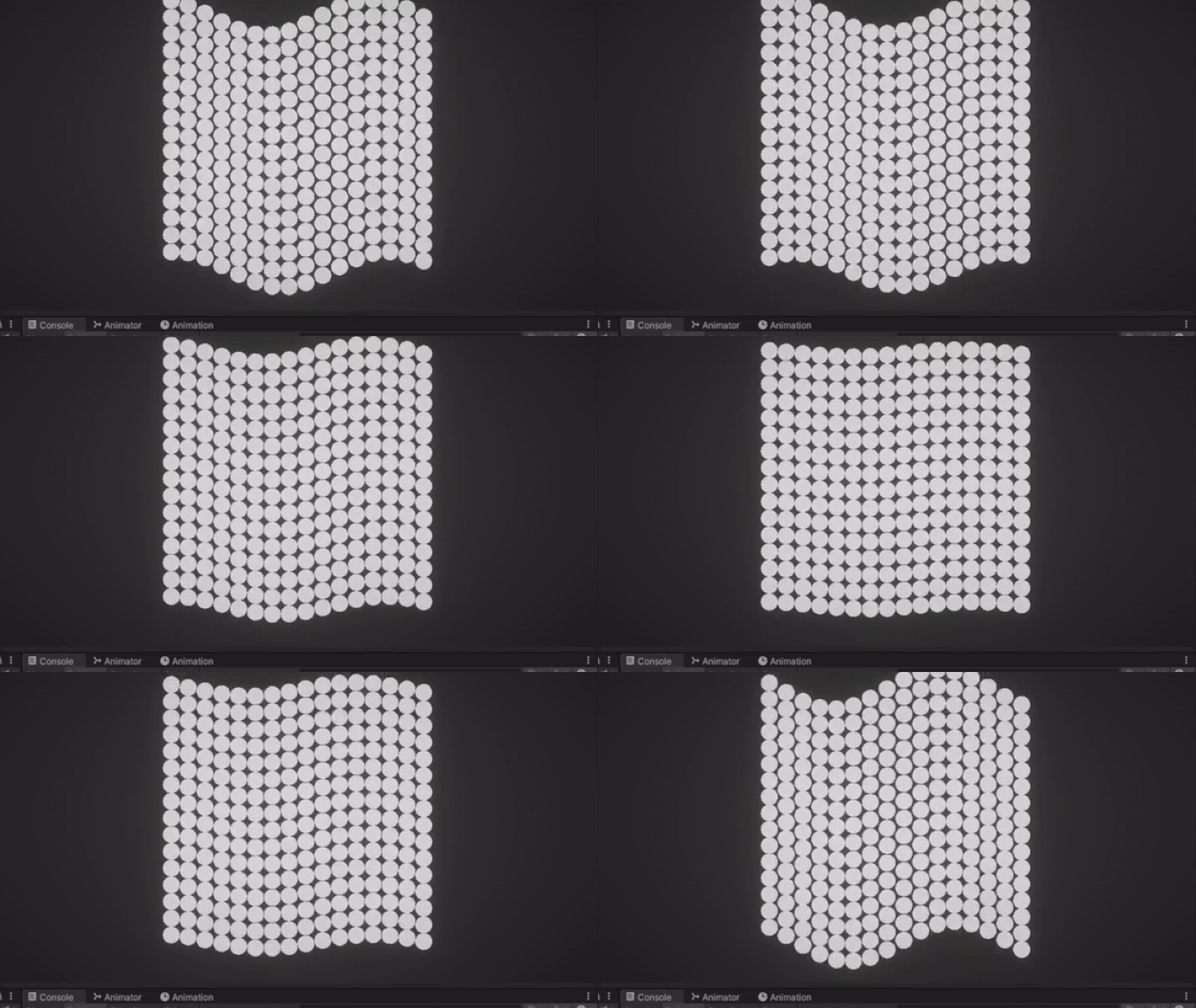
The next two samples will concentrate on dynamic adjustments of object positions during "runtime". Specifically, this one will demonstrate changing the position of each object using the Sine wave function.
GPU processing transforms, Sine wave sample: Compute shader
#pragma kernel TransformsSineMovement

struct SpawnedObjectData
{
    float3 position;
};

float time;
float amplitude;
float frequency;
float speed;

float resolution;

RWStructuredBuffer<SpawnedObjectData> spawnedObjectsData;

[numthreads(64,1,1)]
void TransformsSineMovement (uint3 id : SV_DispatchThreadID)
{
    SpawnedObjectData spawnedObjectData = spawnedObjectsData[id.x];

    //POSITION CHANGES PROCESSING
    spawnedObjectData.position.y += sin(-(id.x/resolution) * frequency + time * speed) * amplitude;

    spawnedObjectsData[id.x] = spawnedObjectData;
}
In this compute shader, additional variables have been introduced to control the movement behavior of the objects. These variables, namely amplitude, frequency, speed, and time, are used as arguments for the Sine function.
- amplitude - determines the maximum displacement from the initial position.
- frequency - controls the rate of oscillation.
- speed - determines how quickly the objects move.
time variable allows for passing the results of the compute shader during runtime, enabling dynamic adjustments to the object positions.
Kernel
[numthreads(64,1,1)]
void TransformsSineMovement (uint3 id : SV_DispatchThreadID)
{
    SpawnedObjectData spawnedObjectData = spawnedObjectsData[id.x];

    //POSITION CHANGES PROCESSING
    spawnedObjectData.position.y += sin(-(id.x/resolution) * frequency + time * speed) * amplitude;

    spawnedObjectsData[id.x] = spawnedObjectData;
}
Within the kernel, the position (Y coordinate in particular) of the object is updated based on the Sine wave formula.
Finally, the modified position is written back to the spawnedObjectsData buffer.
GPU processing transforms, Sine wave sample: C# script
public class CS_TransformsSineMovement : MonoBehaviour
{
    [SerializeField] private ComputeShader computeShader;
    [SerializeField] private string kernelName = "CSMain";
    [SerializeField, Range(1, 10)] private int frameSkipping = 1;
    [SerializeField] private GameObject objectToSpawn;
    [SerializeField] private int spawnGridResolution = 1;
    [SerializeField] private float amplitude, frequency, speed;

    private uint _threadsGroupSizeX;

    private List<GameObject> _spawnedObjects;

    private int _kernelHandle;
    private ComputeBuffer _computeBuffer;
    private SpawnObjectData[] _spawnedObjectsData;

    private void Awake()
    {
        SetupSpawnedObjects();
        SetupComputeShader();
    }

    private void Update()
    {
        if(Time.frameCount % frameSkipping != 0) return;

        computeShader.SetFloat("time", Time.time);
        computeShader.SetFloat("amplitude", amplitude);
        computeShader.SetFloat("frequency", frequency);
        computeShader.SetFloat("speed", speed);

        ShaderDispatch();

        //GET DATA FROM COMPUTE SHADER
        _computeBuffer.GetData(_spawnedObjectsData);

        for (var i = 0; i < _spawnedObjects.Count; i++)
        {
            var obj = _spawnedObjects[i];
            var spawnedObjectData = _spawnedObjectsData[i];
            obj.transform.position = spawnedObjectData.Position;
        }
    }

    private void OnDestroy()
    {
        _computeBuffer.Dispose();
    }

    private void SetupSpawnedObjects()
    {
        _spawnedObjects = new List<GameObject>();
        _spawnedObjectsData = new SpawnObjectData[spawnGridResolution * spawnGridResolution];

        for (var i = 0; i < spawnGridResolution; i++)
        {
            for (var j = 0; j < spawnGridResolution; j++)
            {
                SpawnObject(i,j);
            }
        }
    }

    private void SpawnObject(int x, int y)
    {
        var spawnPos = new Vector3(x, y, 0f);
        var spawnGo = Instantiate(objectToSpawn, spawnPos, Quaternion.identity);

        _spawnedObjects.Add(spawnGo);

        var spawnObjectData = new SpawnObjectData();
        spawnObjectData.Position = spawnGo.transform.position;

        _spawnedObjectsData[x * spawnGridResolution + y] = spawnObjectData;
    }

    private void SetupComputeShader()
    {
        _kernelHandle = computeShader.FindKernel(kernelName);
        computeShader.GetKernelThreadGroupSizes(_kernelHandle, out _threadsGroupSizeX, out _, out _);

        _computeBuffer = new ComputeBuffer(_spawnedObjectsData.Length, sizeof(float) * 3);

        _computeBuffer.SetData(_spawnedObjectsData);

        //SET COMPUTE SHADER DATA
        computeShader.SetBuffer(_kernelHandle, "spawnedObjectsData", _computeBuffer);
        computeShader.SetFloat("resolution", _spawnedObjectsData.Length);

        ShaderDispatch();

        //GET DATA FROM COMPUTE SHADER
        _computeBuffer.GetData(_spawnedObjectsData);

        for (var i = 0; i < _spawnedObjects.Count; i++)
        {
            var spawnedObject = _spawnedObjects[i];
            var spawnedObjectData = _spawnedObjectsData[i];
            spawnedObject.transform.position = spawnedObjectData.Position;
        }
    }

    private void ShaderDispatch()
    {
        computeShader.Dispatch(_kernelHandle, (int)(_spawnedObjectsData.Length + _threadsGroupSizeX),1,1);
    }

    private struct SpawnObjectData
    {
        public Vector3 Position;
    }
}
This script bears some resemblance to the previous one. However, the main difference lies in the usage of the Update() method to pass variable values and retrieve the modified object positions from the compute shader.
private void Update()
{
        if(Time.frameCount % frameSkipping != 0) return;

        computeShader.SetFloat("time", Time.time);
        computeShader.SetFloat("amplitude", amplitude);
        computeShader.SetFloat("frequency", frequency);
        computeShader.SetFloat("speed", speed);

        ShaderDispatch();

        //GET DATA FROM COMPUTE SHADER
        _computeBuffer.GetData(_spawnedObjectsData);

        for (var i = 0; i < _spawnedObjects.Count; i++)
        {
            var obj = _spawnedObjects[i];
            var spawnedObjectData = _spawnedObjectsData[i];
            obj.transform.position = spawnedObjectData.Position;
        }
}
It is important to note a helpful optimization that grants you control over the frequency at which you obtain results from the compute shader. By setting the value of the frameSkipping variable, you can specify the desired frequency, indicating a specific number of frames to be skipped when you wish to receive computational outputs.
if(Time.frameCount % frameSkipping != 0) return;
Now, let's examine the final result for this sample.
Semi-Randomized movement sample
As we reach the last sample, we bring together all the concepts we have covered thus far regarding transform processing. The outcome of this sample will be a partially random arrangement of spawned object positions, influenced by the noise property value.
GPU processing transforms, Random movement sample: Compute shader
#pragma kernel TransformsRandomMovement

struct SpawnedObjectData
{
    float3 position;
};

float time;
float noiseScale;

RWStructuredBuffer<SpawnedObjectData> spawnedObjectsData;

float random(float value, float seed)
{
    float res = frac(sin(value + seed) * 143758.5453);
    return res;
}

float3 random3(float value, float seed)
{
    return float3(random(value, seed + 0.9812),
                  random(value, seed + 0.1536),
                  random(value, seed + 0.7241));
}

[numthreads(64,1,1)]
void TransformsRandomMovement (uint3 id : SV_DispatchThreadID)
{
    float seed = id.x;
    float3 randomVec1 = random3(id.x, seed) - 0.5;
    float3 randomVec2 = random3(id.x, seed + 7.1393) - 0.5;
    float3 sinDir = normalize(randomVec1);
    float3 vec = normalize(randomVec2);
    float3 cosDir = normalize(cross(sinDir, vec));

    float scaledTime = time * 0.5 + random(id.x, seed) * 712.131234;

    // Add noise to the position calculation
    float3 noise = random3(id.x, seed + 15.8257) * noiseScale;
    float3 pos = sinDir * sin(scaledTime) + cosDir * cos(scaledTime) + noise;

    spawnedObjectsData[id.x].position = pos * 2;
}
Helper Functions
float random(float value, float seed)
{
    float res = frac(sin(value + seed) * 143758.5453);
    return res;
}

float3 random3(float value, float seed)
{
    return float3(random(value, seed + 0.9812),
                  random(value, seed + 0.1536),
                  random(value, seed + 0.7241));
}
random() function takes a value and a seed as inputs and returns a random value between 0 and 1 using a pseudo-random number generator.
random3() function generates a random float3 vector by calling the random() function multiple times with different seed values.
Kernel
[numthreads(64,1,1)]
void TransformsRandomMovement (uint3 id : SV_DispatchThreadID)
{
    float seed = id.x;
    float3 randomVec01 = random3(id.x, seed) - 0.5;
    float3 randomVec02 = random3(id.x, seed + 7.1393) - 0.5;
    float3 sinDir = normalize(randomVec01);
    float3 vec = normalize(randomVec02);
    float3 cosDir = normalize(cross(sinDir, vec));

    float scaledTime = time * 0.5 + random(id.x, seed) * 712.131234;

    // Add noise to the position calculation
    float3 noise = random3(id.x, seed + 15.8257) * noiseScale;
    float3 pos = sinDir * sin(scaledTime) + cosDir * cos(scaledTime) + noise;

    spawnedObjectsData[id.x].position = pos * 2;
}
Within the kernel, two random vectors, randomVec01 and randomVec02, are generated using the random3 function and normalized. These vectors are used to define a sine direction sinDir and a cross direction cosDir.
The variable scaledTime is calculated by multiplying the time by 0.5 and adding a random value using the random() function.
Noise is added to the position calculation by generating a random float3 vector, noise, using the random3() function and scaling it by the noise scale value.
The final position, pos, is determined by combining the sinDir and cosDir directions with the noise vector.
The modified position is then stored in the position member of the SpawnedObjectData for the corresponding object in the spawnedObjectsData buffer.
GPU processing transforms, Random movement sample: C# script
using System.Collections.Generic;
using UnityEngine;

namespace CS_Transforms
{
    public class CS_TransformsRandomMovement : MonoBehaviour
    {
        [SerializeField] private ComputeShader computeShader;
        [SerializeField] private string kernelName = "CSMain";
        [SerializeField, Range(1, 10)] private int frameSkipping = 1;
        [SerializeField] private GameObject objectToSpawn;
        [SerializeField] private int objectsSpawnCount = 1;
        [SerializeField] private float noiseScale = 0.1f;

        private uint _threadsGroupSizeX;

        private List<GameObject> _spawnedObjects;

        private int _kernelHandle;
        private ComputeBuffer _computeBuffer;
        private SpawnObjectData[] _spawnedObjectsData;

        private void Awake()
        {
            SetupSpawnedObjects();
            SetupComputeShader();
        }

        private void Update()
        {
            if(Time.frameCount % frameSkipping != 0) return;

            computeShader.SetFloat("time", Time.time);
            computeShader.SetFloat("noiseScale", noiseScale);

            ShaderDispatch();

            //GET DATA FROM COMPUTE SHADER
            _computeBuffer.GetData(_spawnedObjectsData);

            for (var i = 0; i < _spawnedObjects.Count; i++)
            {
                _spawnedObjects[i].transform.position = _spawnedObjectsData[i].Position;
            }
        }

        private void OnDestroy()
        {
            _computeBuffer.Dispose();
        }

        private void SetupSpawnedObjects()
        {
            _spawnedObjects = new List<GameObject>();

            for (var i = 0; i < objectsSpawnCount; i++)
            {
                SpawnObject();
            }
            _spawnedObjectsData = new SpawnObjectData[_spawnedObjects.Count];
        }
        private void SpawnObject()
        {
            var spawnGo = Instantiate(objectToSpawn, Vector3.zero, Quaternion.identity);
            _spawnedObjects.Add(spawnGo);
        }

        private void SetupComputeShader()
        {
            _kernelHandle = computeShader.FindKernel(kernelName);
            computeShader.GetKernelThreadGroupSizes(_kernelHandle, out _threadsGroupSizeX, out _, out _);

            _computeBuffer = new ComputeBuffer(_spawnedObjectsData.Length, sizeof(float) * 3);

            //SET COMPUTE SHADER DATA
            computeShader.SetBuffer(_kernelHandle, "spawnedObjectsData", _computeBuffer);

            ShaderDispatch();
        }

        private void ShaderDispatch()
        {
            computeShader.Dispatch(_kernelHandle, (int)(_threadsGroupSizeX),1,1);
        }

        private struct SpawnObjectData
        {
            public Vector3 Position;
        }
    }
}
Provided script behaves the same way as previous one, but passing to the compute shader the noiseScale value by calling:
computeShader.SetFloat("noiseScale", noiseScale);
Let's examine the final result for this sample.

As we conclude this article, my sincere wish is that it has laid a solid groundwork for your comprehension of harnessing the power of GPU to process transformations.
Thanks a lot for attention, and until the next time!
Support Decompiled Art on Patreon
(and get source files for this article)

Support Decompiled Art with Ko-fi

FOLLOW AND CHECK FOR UPDATES:
Decompiled Art YouTube
Decompiled Art Instagram
Decompiled Art Twitter
Decompiled Art Facebook
***