Hi and welcome to Decompiled Art articles!
This is a third part of Unity Tiny Scriptable Pipeline creation series.
To follow along, make sure to check previous chapters:
Unity Scriptable Rendering Pipeline DevLog #1: Initial Setup
Unity Scriptable Rendering Pipeline DevLog #2: Skybox, Frame Clearing, Geometry Rendering & Culling
Rendering Errors Detection
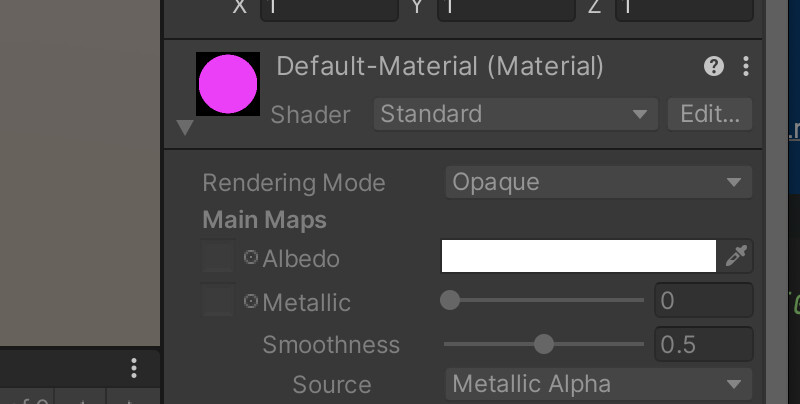
While working with shaders its necessary to detect if there are any errors during their GPU code execution. As a visual standard, Unity provides us with Hidden/InternalErrorShader so we're able to detect any visual shader compilation issues.
If interested, here's a source code for Unity's Hidden/InternalErrorShader.
First, lets create a private Material property to store material which will be used to visualise rendering errors.
private Material _renderingErrorMaterial;
Next, create a separate method DrawRenderErrorsData() that will be responsible for processing objects that (possibly) have rendering errors to visualise. Here we can also create (if none) a new material and specify that _renderingErrorMaterial should use Hidden/InternalErrorShader.
Once we're sure that material exists, we need to apply it to a specific objects that are using defined RenderErrorShaderTagId (more on that follows)
private void DrawRenderErrorsData()
{
    if (!_renderingErrorMaterial) _renderingErrorMaterial = new Material(Shader.Find("Hidden/InternalErrorShader
));


    var drawingSettings = new DrawingSettings(RenderErrorShaderTagId,
        new SortingSettings(_camera))
    {
        overrideMaterial = _renderingErrorMaterial
    };
}
Shader pass tags are key-value pairs. Unity uses tags and values to determine how and when to render a given shader pass. Here's a code line to store ForwardBase ShaderTagId value:
private static readonly ShaderTagId RenderErrorShaderTagId = new ("ForwardBase");Check this page to learn more about ShaderTagIds.
Next thing is to define specific drawingSettings and filteringSettings. Once these are set (as with DrawGeometryData()) DrawRenderers() should be called for a context.
Code follows...
private void DrawRenderErrorsData()
{
    if (!_renderingErrorMaterial) _renderingErrorMaterial = new Material(Shader.Find("Hidden/InternalErrorShader"));


    var drawingSettings = new DrawingSettings(RenderErrorShaderTagId,
        new SortingSettings(_camera))
    {
        overrideMaterial = _renderingErrorMaterial
    };


    drawingSettings.SetShaderPassName(0, RenderErrorShaderTagId);


    var filteringSettings = FilteringSettings.defaultValue;
    _context.DrawRenderers(
        _cullingResults, ref drawingSettings, ref filteringSettings
    );
}
Also, make sure to add DrawRenderErrorsData() execution within Render() method. After that it will look something like that:
public void Render(ScriptableRenderContext context, Camera camera)
{
    _context = context;
    _camera = camera;

    if(!TryCull()) return;

    CameraRenderingSetup();
    DrawGeometryData();
    DrawRenderErrorsData();
    CameraRenderingSubmit();
}
Let's be more practical and create a new legacy Lit-shaded object to check if we can detect rendering errors.
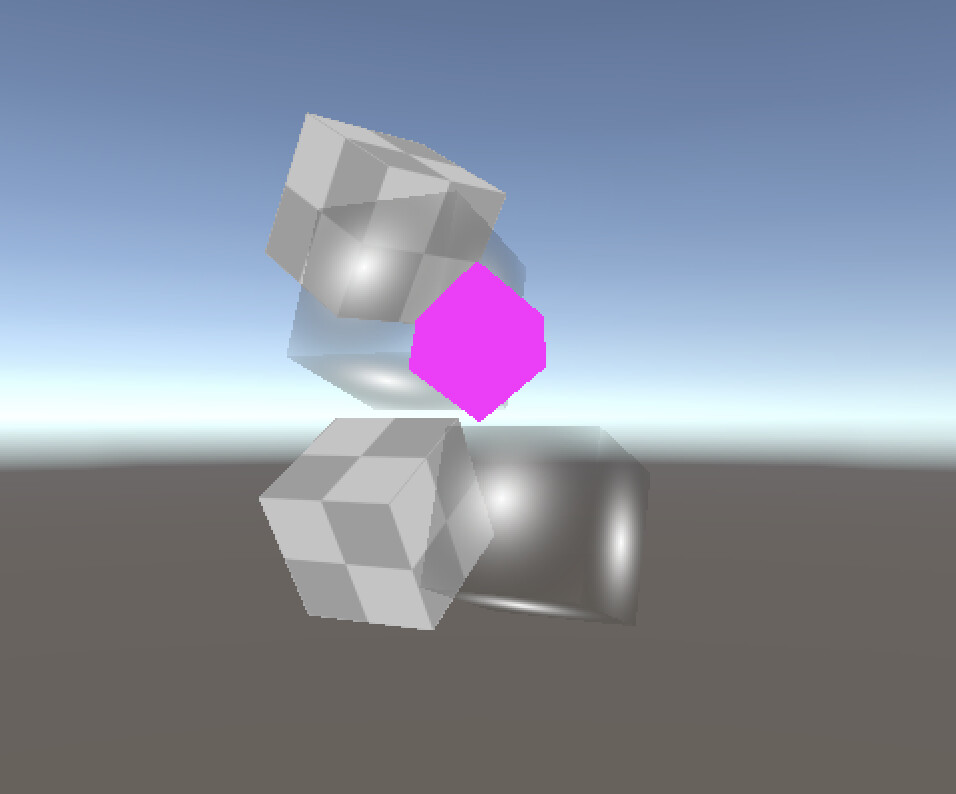
It does work and we clearly can define that something is wrong with one of the objects.
No lets get back to mentioned ForwardBase definition of ShaderTagId. The thing is that there are several Unity-defined ShaderTagIds used within Legacy Unity render Pipeline (Built-In). We should specify each one of them within our drawingSettings in order to detect every rendered object which might be using some of Legacy-related shader pass tags.
So lets change followed codeline to an array of ShaderTagIds. Keep in mind that currently we're working only with unlit objects, so corresponding ShaderTagIds are
//private static readonly ShaderTagId RenderErrorShaderTagId = new ShaderTagId("ForwardBase");


private static readonly ShaderTagId[] RenderErrorShaderTagIds = {
    new ("Always"), new ("ForwardBase"), new ("Vertex"),
    new ("VertexLMRGBM"), new ("VertexLM")
};
Check this page to learn more about existing Built-In Render Pipeline ShaderTagIds.
As we transitioned from a single ShaderTagId into an array of them, DrawRenderErrorsData() should be changed as well
private void DrawRenderErrorsData()
{
    if (!_renderingErrorMaterial) _renderingErrorMaterial = new Material(Shader.Find("Hidden/InternalErrorShader"));


    var drawingSettings = new DrawingSettings(RenderErrorShaderTagIds[0],
        new SortingSettings(_camera))
    {
        overrideMaterial = _renderingErrorMaterial
    };


    for (int i = 1; i < RenderErrorShaderTagIds.Length; i++) {
        drawingSettings.SetShaderPassName(i, RenderErrorShaderTagIds[i]);
    }

    var filteringSettings = FilteringSettings.defaultValue;
    _context.DrawRenderers(_cullingResults, ref drawingSettings, ref filteringSettings);
}
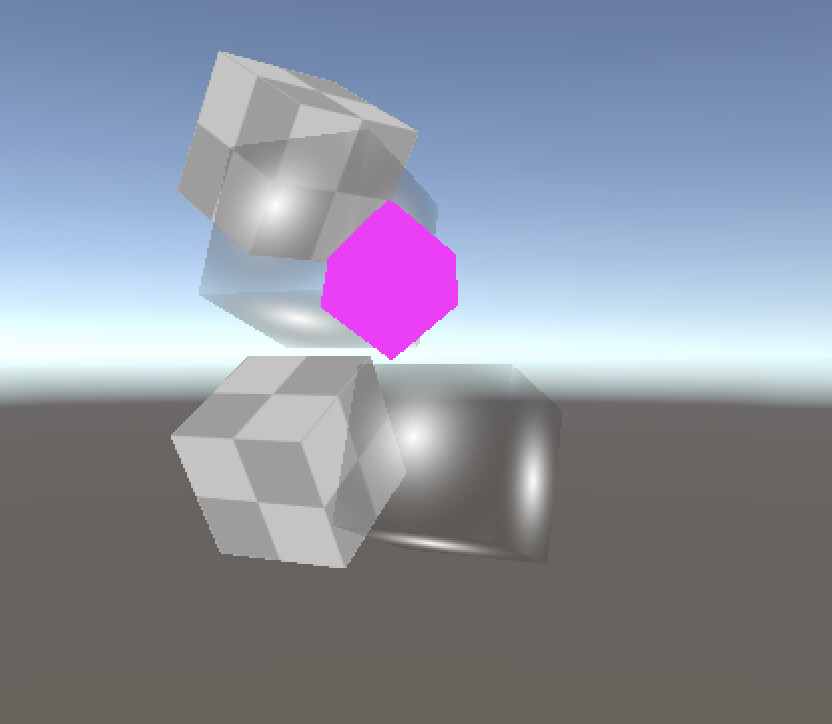
Once again, brief visual test and... everything is still operational, perfect!
Rendering UI elements
Lets create some test UI elements setup.
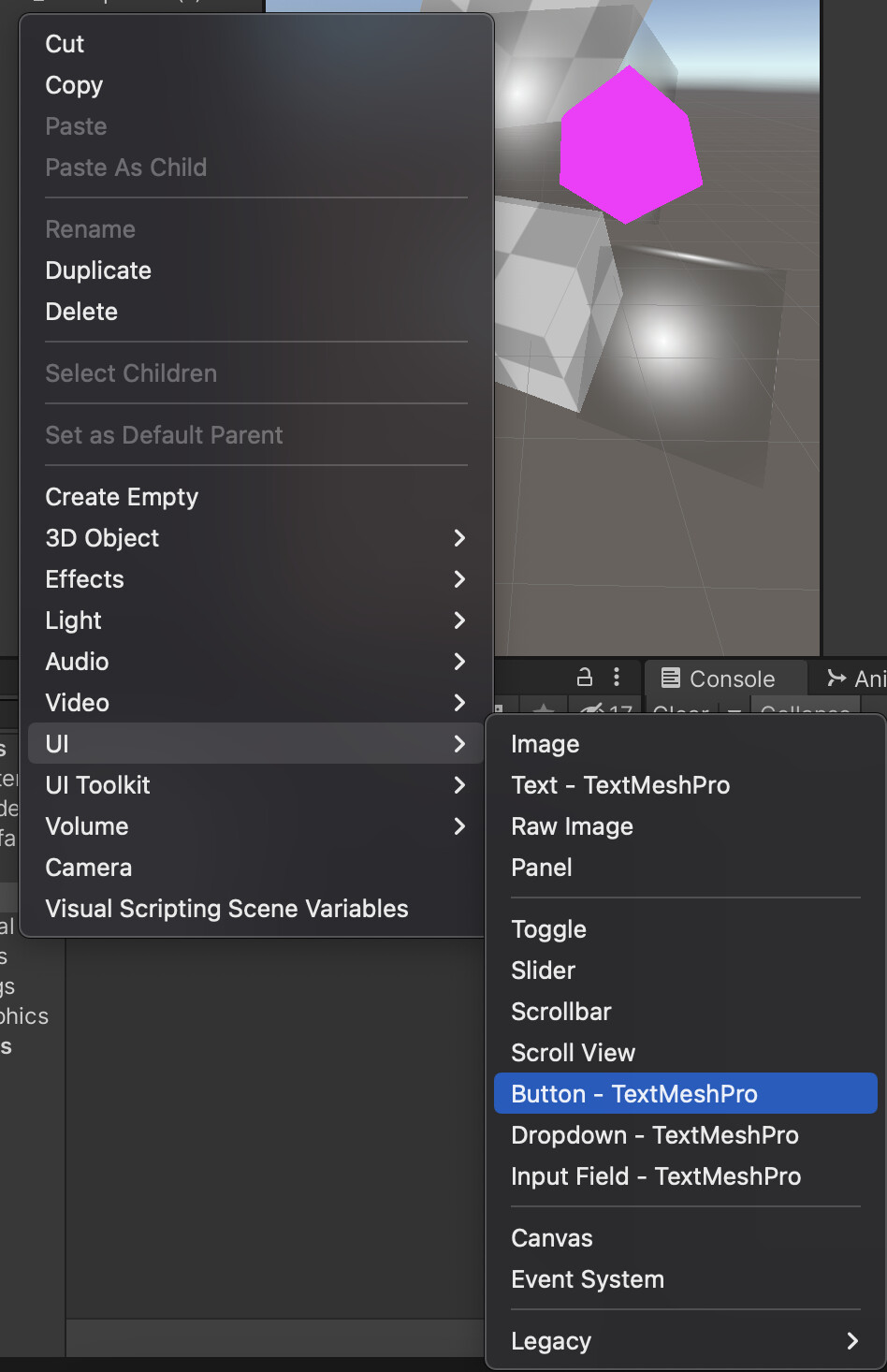
As you can discover, at the moment UI data is shown within Game window but nothing being rendered in the Scene view.
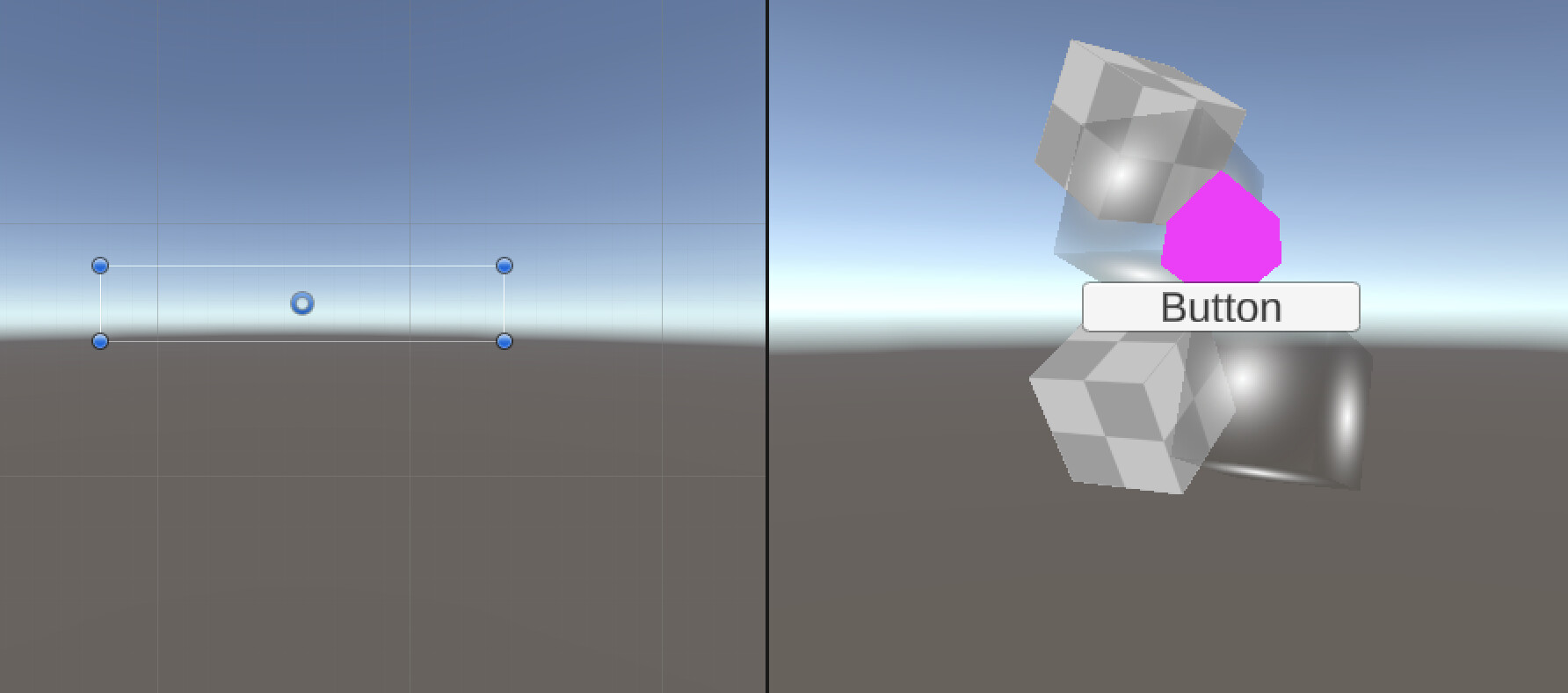
To fix that lets create corresponding method called DrawUiGeometryData() and place it within conditional compilation directive UNITY_EDITOR so we make sure that this code executed only within an editor.
***
#if UNITY_EDITOR
        DrawUiGeometryData(_camera);
#endif
***
Now Render() method should look something like this:
public void Render(ScriptableRenderContext context, Camera camera)
    {
        _context = context;
        _camera = camera;

#if UNITY_EDITOR
        DrawUiGeometryData(_camera);
#endif


        if(!TryCull()) return;


        CameraRenderingSetup();
        DrawGeometryData();
        DrawRenderErrorsData();
        //DrawGizmos();
        CameraRenderingSubmit();
    }
DrawUiGeometryData() method implementation:
private void DrawUiGeometryData(Camera camera)
{
    if(camera.cameraType == CameraType.SceneView)
        ScriptableRenderContext.EmitWorldGeometryForSceneView(camera);
}
Here we're checking if current camera is responsible for Unity's scene rendering (CameraType.SceneView) then we're telling Unity to force UI elements geometry rendering.
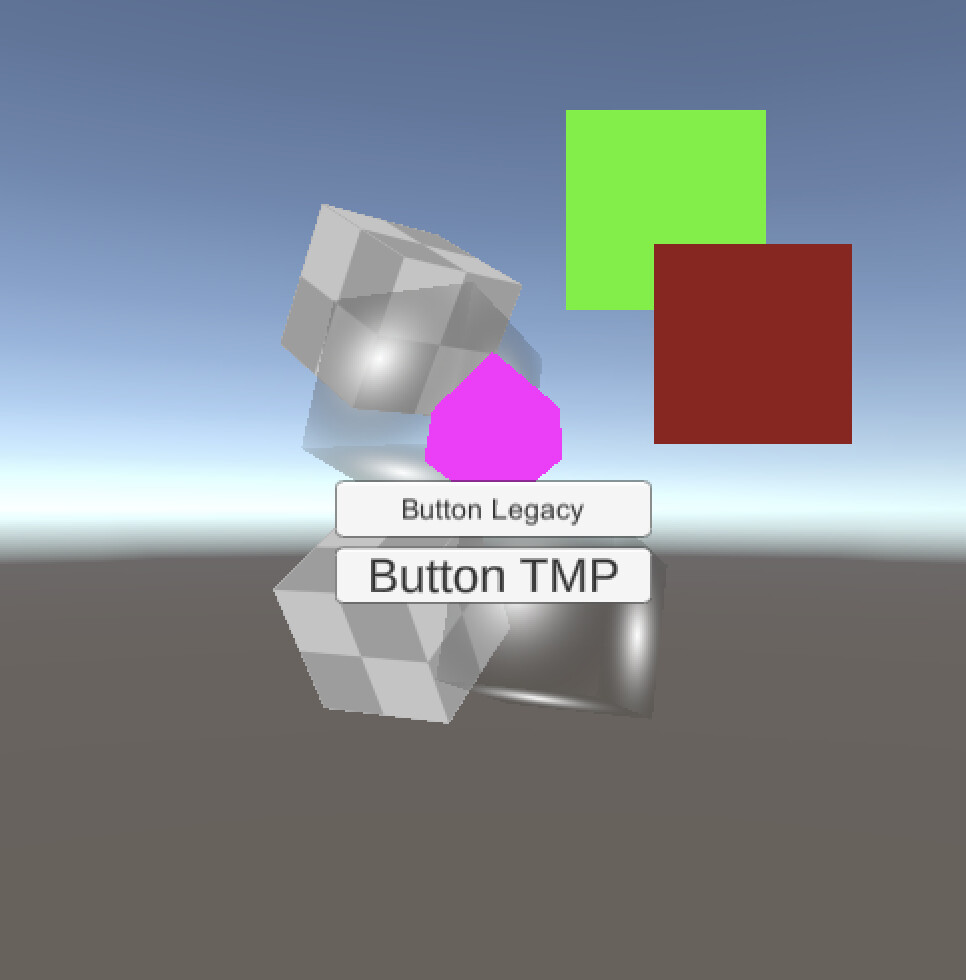
Seems like now UI elements are rendered properly, great job! We can freely move ourselves into implementation of next cool features that will extend our Custom Scriptable Render Pipeline. Cheers!
Hope you've enjoyed the article and thanks for your time! Stay tuned!
Support Decompiled Art on Patreon

Support Decompiled Art with Ko-fi

***
FOLLOW AND CHECK FOR UPDATES:
Decompiled Art YouTube
Decompiled Art Instagram
Decompiled Art Twitter
Decompiled Art Facebook
***