Hi and welcome to Decompiled Art articles!
This is a forth part of Unity custom Scriptable Rendering Pipeline creation series. This time its about dealing with batching (and gaining a glimpse at what its actually is) along with implementing SPR Batcher functionality (Unity's draw calls optimisation method).
To follow along, make sure to check previous chapters:
Unity Scriptable Rendering Pipeline DevLog #1: Initial Setup
Unity Scriptable Rendering Pipeline DevLog #2: Skybox, Frame Clearing, Geometry Rendering & Culling
Unity Scriptable Rendering Pipeline DevLog #3: Render Errors Detection, UI elements rendering
Multiple Cameras Rendering
One of the most common cases where multi-camera setup being used is when you need to split scene's objects to be rendered via different cameras. For example you would like to render some Debug/Error object separately.
Lets start with creating an additional Camera gameObject to test out multi-cameras setup.
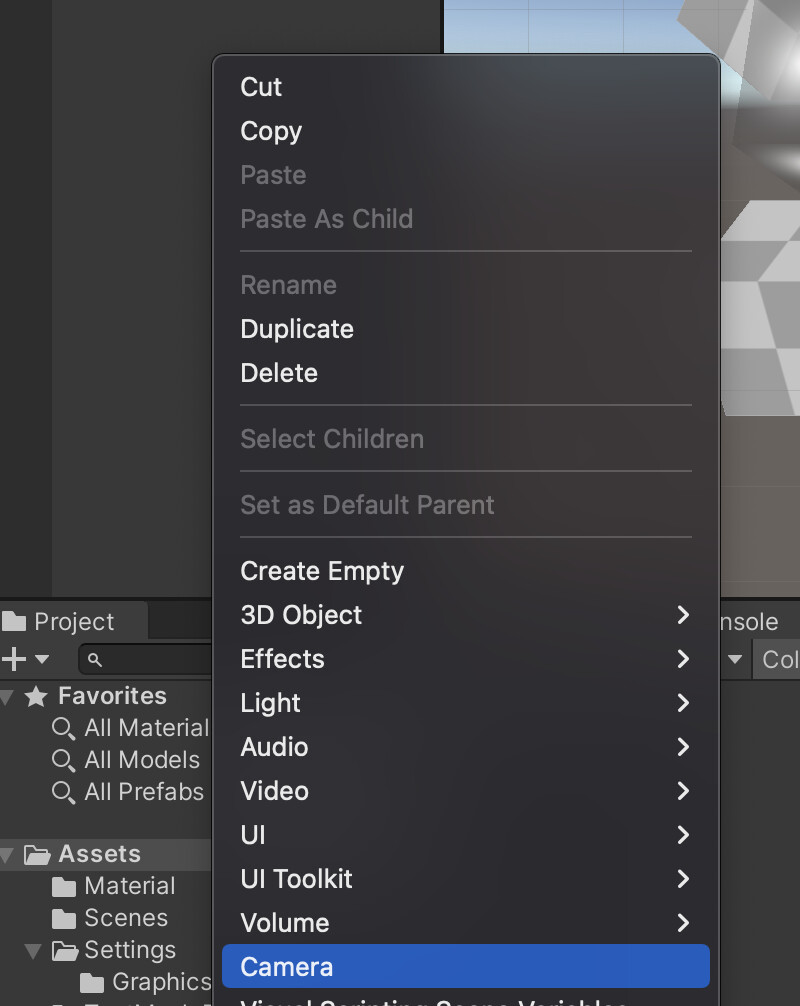
Rename newly added Camera to Camera_Debug (better for hierarchy organisation).

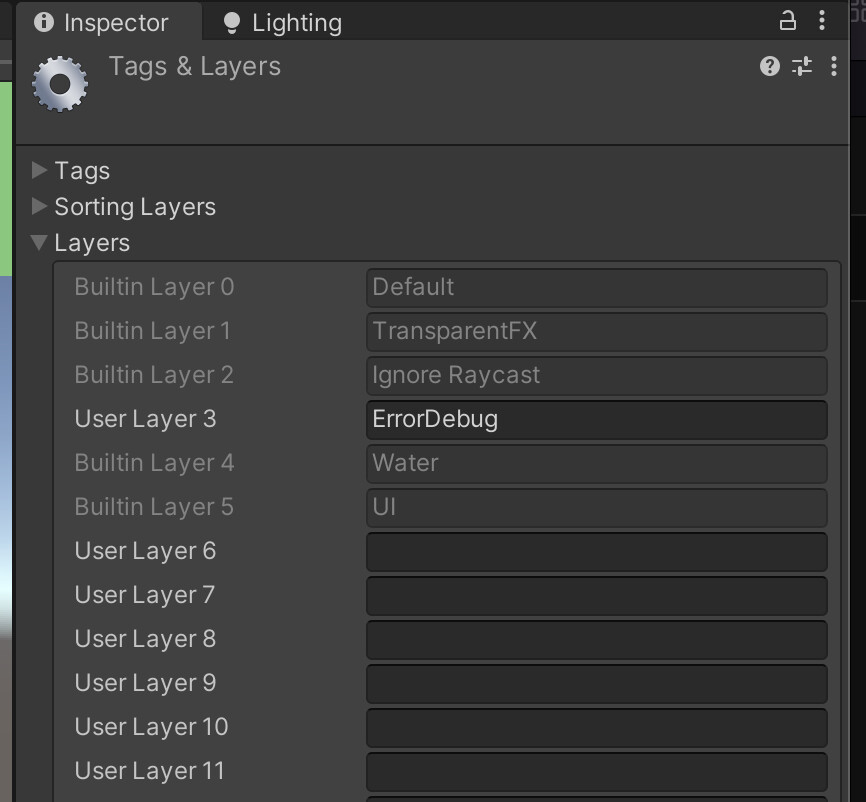
Next thing is about adding new Layer and assign Debug/Error objects to it. Later we will use it to tell Camera_Debug what layers should this camera render (Culling Mask).
Within Camera component of Camera_Debug object set Culling Mask to only render ErrorDebug layer-related objects.

Now as we're done with in-Editor multi-cameras setup, there is some scripting stuff should be added in order for our pipeline could handle multiple cameras processing.
First, add RenderTargetDefinition() method to CustomCameraRenderer script in order to provide Scripting Rendering Pipeline with processing Camera name.
private void RenderTargetDefinition(Camera camera)
{
    _buffer.name = camera.name;
}


***
#if UNITY_EDITOR
        RenderTargetDefinition(camera);
        DrawUiGeometryData(_camera);
#endif
***
If everything is correct, hierarchy Camera name should be displayed within a Frame Debugger.


Next thing to deal with is to provide Scriptable Rendering Pipeline with per-Camera ClearFlags. ClearFlags define how exactly the camera clears the background during rendering process.
To do this, modify CameraRenderingSetup() method
private void CameraRenderingSetup()
{
    _context.SetupCameraProperties(_camera);

    var clearFlags = _camera.clearFlags;
    var clearDepth = clearFlags <= CameraClearFlags.Depth;
    var clearColor = clearFlags == CameraClearFlags.Color;
    _buffer.ClearRenderTarget(clearDepth,clearColor, Color.clear);

    _buffer.BeginSample(CommandBufferLabel);
    ExecuteBuffer();
}
Interesting part here is ClearRenderTarget(). Adds a "clear render target" command.
public void ClearRenderTarget(bool clearDepth, bool clearColor, Color backgroundColor);
clearDepth - Whether to clear both the depth buffer and the stencil buffer.
clearColor - Should clear color buffer?
backgroundColor - Color to clear with.
Here are several options on how ClearFlags of Camera_Debug should be set.

Make sure to check that everything is rendering correctly.

Batching
In order to draw geometry, Unity uses draw calls concept. Simply taking, draw call is an information that engine passes to graphics API for further processing and execution. A draw call provides the graphics API with an info (shader, texture, buffers, etc.) what and how exactly anything should be drawn. Single draw call don't represent any performance reduction but lots of them will..... drastically.
While data prepared to send it over to GPU by CPU called Render State.
To prepare for a draw call, the CPU sets up resources and changes internal settings on the GPU. These settings are collectively called the render state. Changes to the render state, such as switching to a different material, are the most resource-intensive operations the graphics API performs.
Batching is a process of combining several draw calls render states (on CPU) and sending them over to GPU.
With Scriptable Render Pipeline Unity provides us with cool optimisation feature called SRP Batcher. Its main purpose and functionality are built around the process of preparation and processing draw calls for materials using the same shader variant.
Check this link to know more about Unity's SRP Batcher.
There are several places for us to check out current draw calls passed to GPU.
Stats (Game Window)

Frame Debugger

Saved by batching currently shows 0 and that means that every single present object has its own Render State and passed separately to the GPU. So lets proceed with implementing methods of bathing provided draw calls.
First, we should enable SRP Batcher support within Render Pipeline itself.
We can do this by creating a constructor for CustomRP class. That will automatically make sure that SRP Batcher will be enabled when this Render Pipeline Asset is created and used.
public CustomRP()
{
    GraphicsSettings.useScriptableRenderPipelineBatching = true;
}
Other than within Scriptable Rendering Pipeline itself, SRP Batcher support should be provided for used shaders. Current objects are using Unlit shader which is not support SRP Batcher by default. To check that out, look through shader's info for SRP Batcher compatibility value.

Create new Unlit shader.
Shader "CustomSRP/Unlit/Unlit_SRPBatcher"
{
    Properties
    {
        _MainTex ("Texture", 2D) = "white" {}
        _Tint ("Tint", Color) = (1,1,1,1)
    }

    SubShader
    {
        Tags { "RenderType"="Opaque" }
        LOD 100


        Pass
        {
            CGPROGRAM
            #pragma vertex vert
            #pragma fragment frag


            #include "UnityCG.cginc"


            struct appdata
            {
                float4 vertex : POSITION;
                float2 uv : TEXCOORD0;
            };


            struct v2f
            {
                float2 uv : TEXCOORD0;
                float4 vertex : SV_POSITION;
            };


            sampler2D _MainTex;
            float4 _MainTex_ST;
            half4 _Tint;


            v2f vert (appdata v)
            {
                v2f o;
                o.vertex = UnityObjectToClipPos(v.vertex);
                o.uv = TRANSFORM_TEX(v.uv, _MainTex);
                return o;
            }


            half4 frag (v2f i) : SV_Target
            {
                half4 col = tex2D(_MainTex, i.uv);
                col.rgb *= _Tint.rgb;

                return col;
            }
            ENDCG
        }
    }
}
Initially Unity used Cg shading language. Though CGPROGRAMS (.cginc) are still recognised, modern engine versions work with HLSLPROGRAM (.hlsl). So we need to modify newly added shader to use HLSLPROGRAM.
Shader "CustomSRP/Unlit/Unlit_SRPBatcher"
{
    Properties
    {
        _Tint("Tint", Color) = (1,1,1,1)
        _BaseMap("Base Map", 2D) = "white"
    }

   SubShader {

      Tags { "RenderType" = "Opaque" }

      Pass
       {
           HLSLPROGRAM


        #pragma vertex vert
        #pragma fragment frag


           #include "Packages/com.unity.render-pipelines.universal/ShaderLibrary/Core.hlsl"


           struct Attributes
            {
                float4 positionOS   : POSITION;
                float2 uv           : TEXCOORD0;
            };


            struct Varyings
            {
                float4 positionHCS  : SV_POSITION;
                float2 uv : TEXCOORD0;
            };


            TEXTURE2D(_BaseMap);
            SAMPLER(sampler_BaseMap);


           half4 _Tint;
           float4 _BaseMap_ST;

           Varyings vert(Attributes IN)
            {
                Varyings OUT;
                OUT.positionHCS = TransformObjectToHClip(IN.positionOS.xyz);
            OUT.uv = TRANSFORM_TEX(IN.uv, _BaseMap);
                return OUT;
            }


            half4 frag(Varyings IN) : SV_Target
            {
               half4 color = SAMPLE_TEXTURE2D(_BaseMap, sampler_BaseMap, IN.uv);
            color.rgb *= _Tint.rgb;
               return color;
            }

           ENDHLSL
        }
   }
}
To learn more about HLSL in Unity, check this page.
As we would like to cache material properties for further processing within SRP Batcher, Constant Buffer should be defined.
Starting with DirectX 11, shader variables are grouped into “constant buffers” for optimisations purposes.
***
CBUFFER_START(UnityPerMaterial)
half4 _Tint;
float4 _BaseMap_ST;
CBUFFER_END
***
To test out that SRP Batcher doing its job, create several materials with different properties' values.

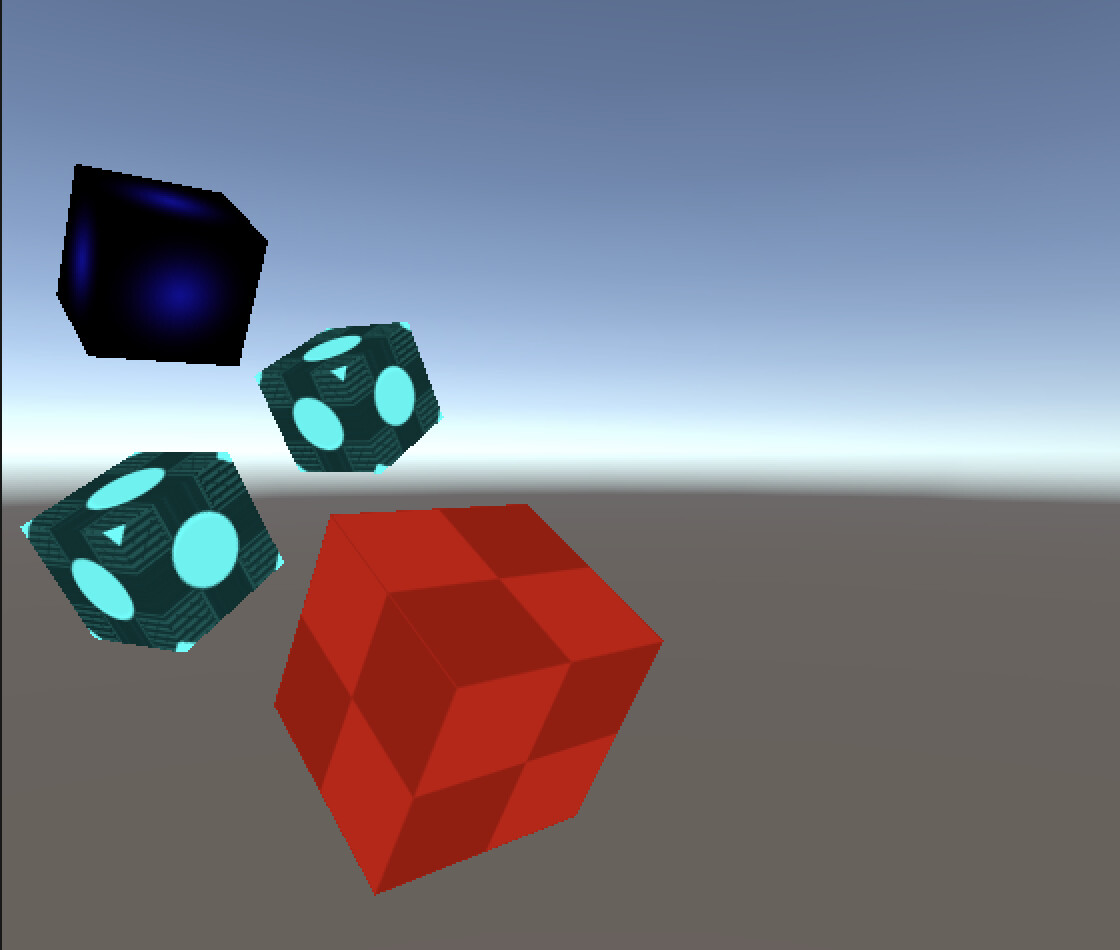
As you can see, these objects are processed as a single SRP Batch, which means that Scriptable Rendering Pipeline and our custom shader are aware of each other.

Hope you've enjoyed the article and thanks for your time! Stay tuned!
Support Decompiled Art on Patreon

Support Decompiled Art with Ko-fi

***
FOLLOW AND CHECK FOR UPDATES:
Decompiled Art YouTube
Decompiled Art Instagram
Decompiled Art Twitter
Decompiled Art Facebook
***